
Bambu Lab A2L Combo Setup Guide
Tajseem Academy / Bambu Lab A2L
Setup and operation guide for Bambu Lab A2L
This guide walks you through preparing, assembling and starting your printer, with photos and videos to follow step by step.
Filament system: AMS lite
Prepared by Tajseem using official sources • English edition reviewed: 22 October 2026
Before you begin
- Check that the model and version on your printer match this guide. Packaging and accessories may vary by batch.
- Prepare a stable table and leave room for movement and tubing. Open your printer manual and watch the video to locate the shipping restraints. The heated bed is the part that moves or heats up; the build plate sits on top of it and supports the print.
- Use the tools and screws specified for each step. Keep the printer disconnected from power while assembling parts and connecting cables.
- Keep the box, protective packaging and shipping screws, and store the shipping screws separately from the assembly screws.
Assembly video
Watch the video and follow the written steps below it. You can enable subtitles in the YouTube settings if they are available.
Unboxing and assembly — Bambu Lab A2L
Unboxing and assembly steps
Follow the steps in order and check the images below each step. Click an image to view it or open its reference. Compare screw positions and connections with the images in the printer manual as you assemble the printer.
- Take out the build plate, AMS lite and holders. Lift the frame by its sides or the gray section behind the Z-axis; do not hold the X-axis rail.
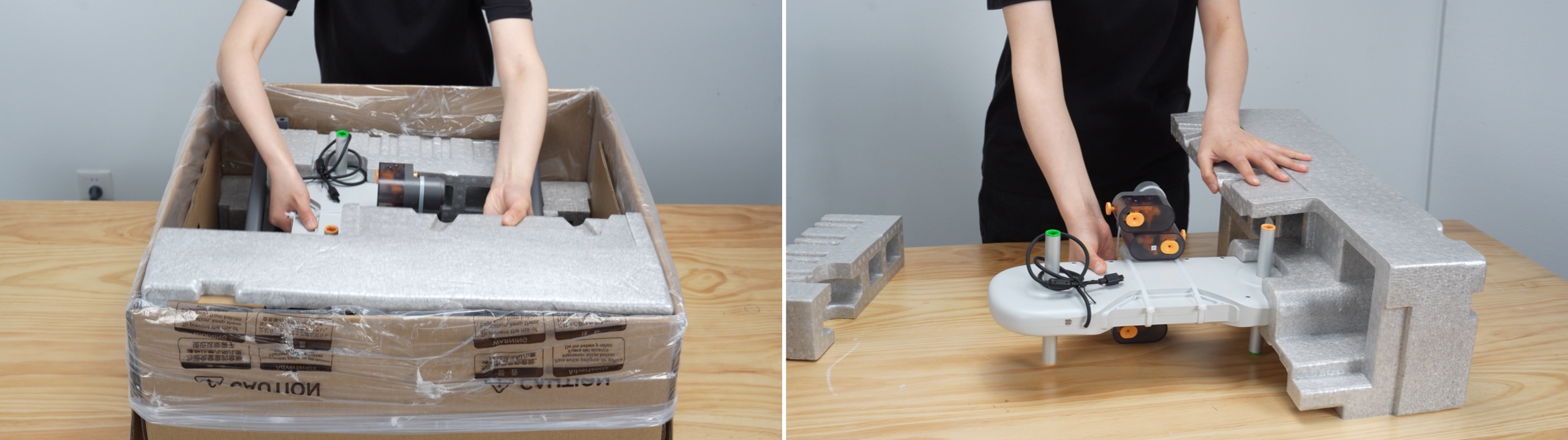
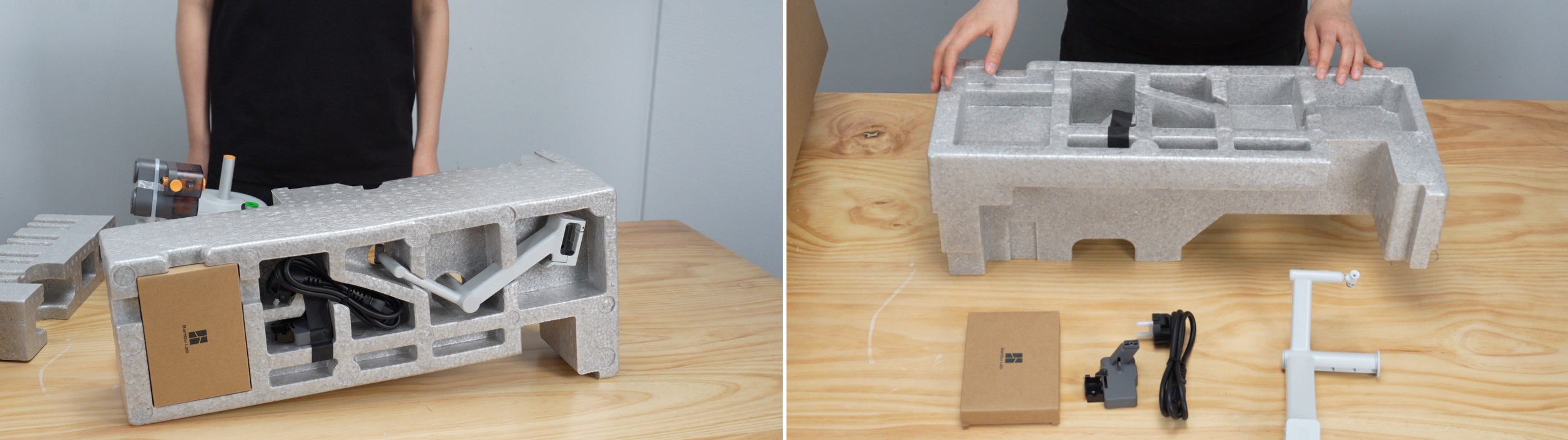
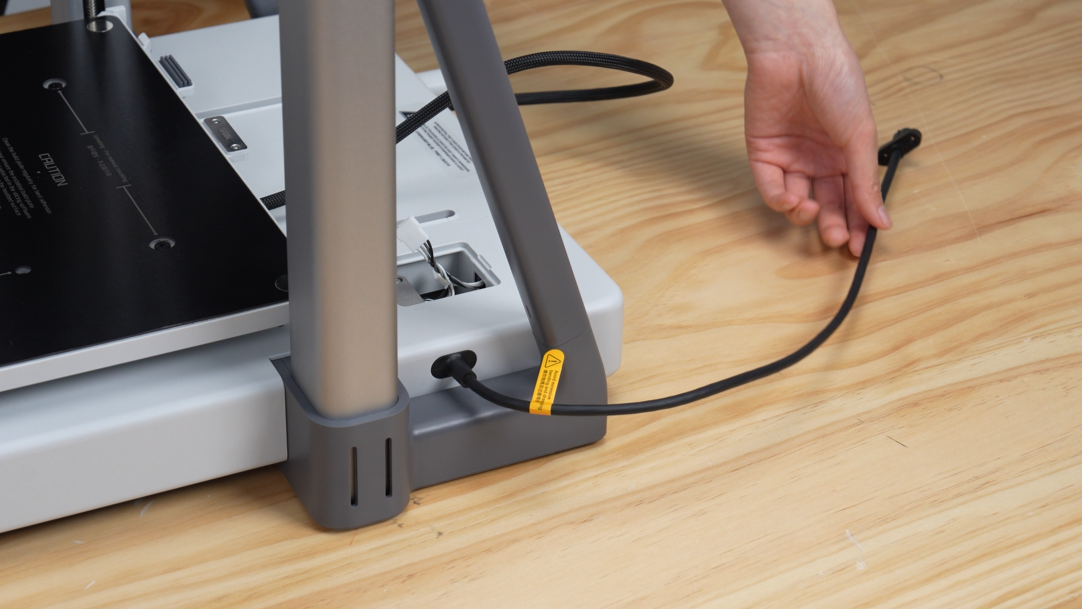
- Lift the base housing from both sides, cut the shipping ties and remove the foam. Take out the integrated cable and set it aside without twisting or bending it.
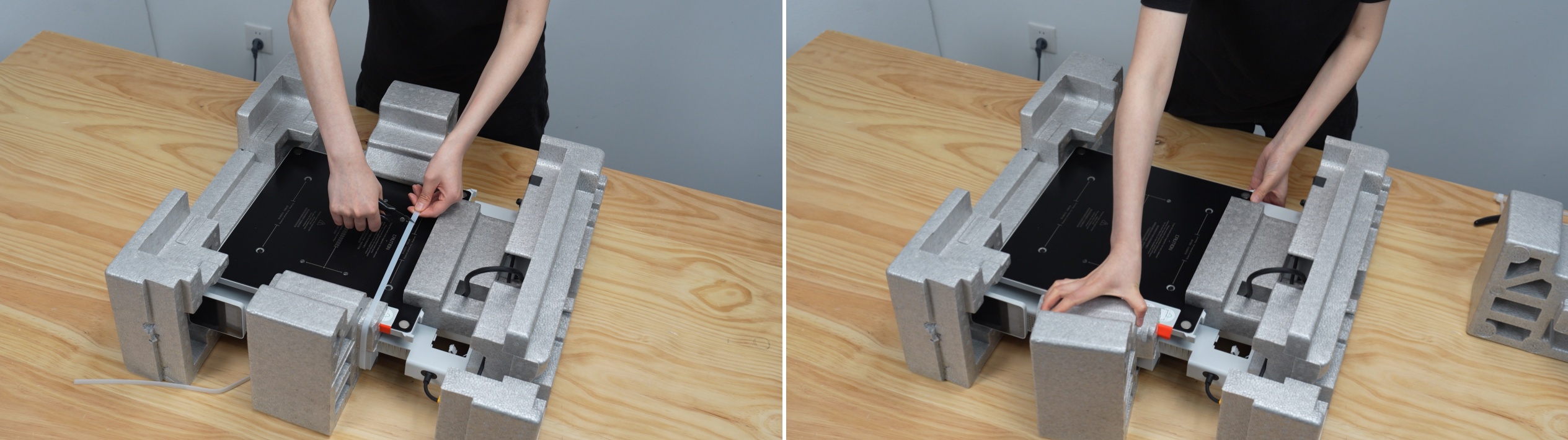
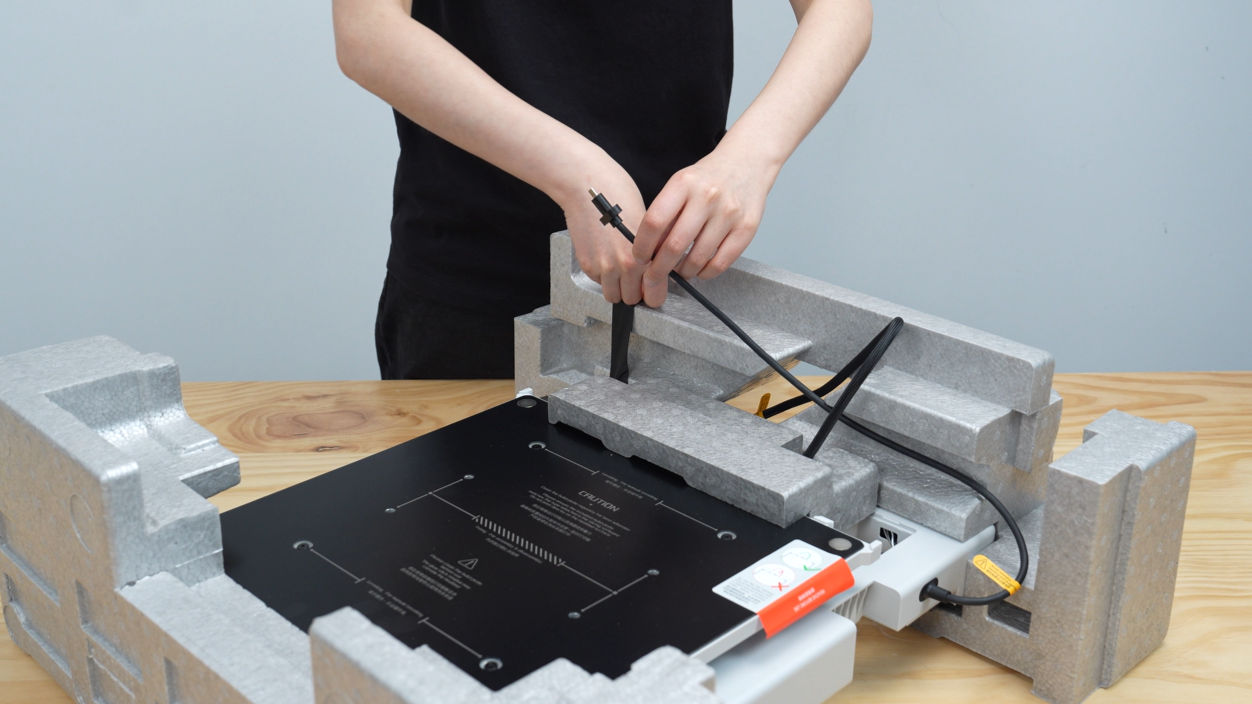
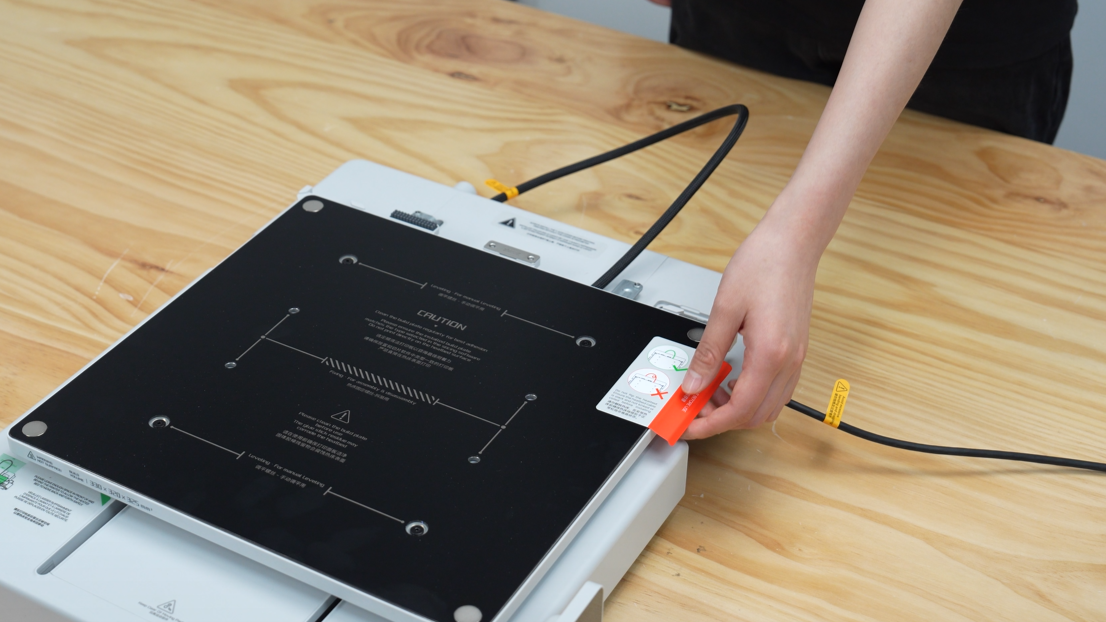
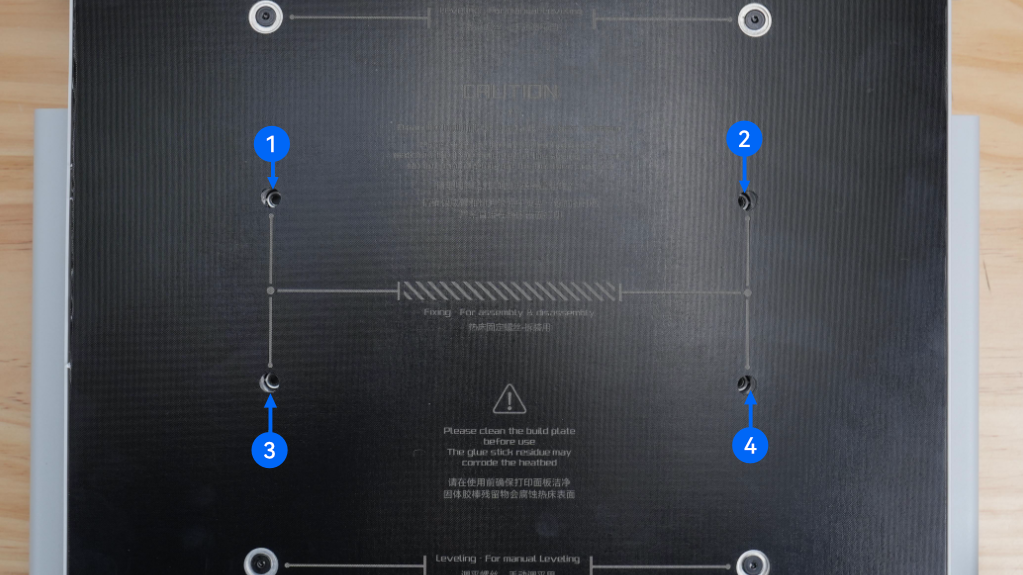
- Read the heatbed cable warning and check that the cable is not twisted. Align the heatbed with the Y-carriage and secure it with the four screws shown in the diagram.
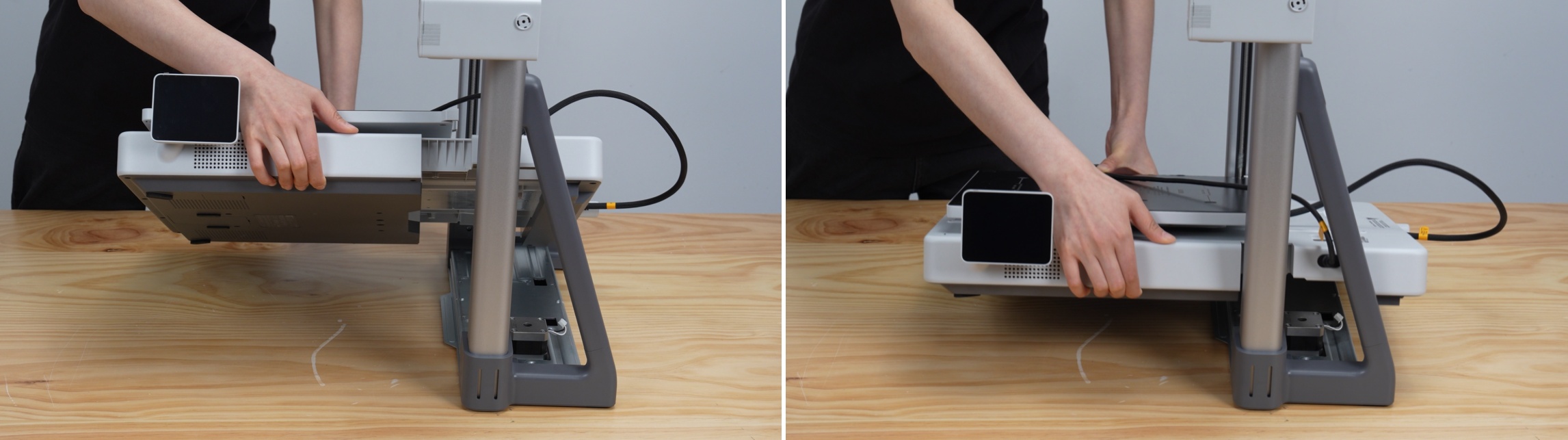
- Tilt the base housing about 45 degrees to pass it through the frame. Keep the cables clear of the assembly area so they cannot be trapped, align the slots, then lower the base housing gently.
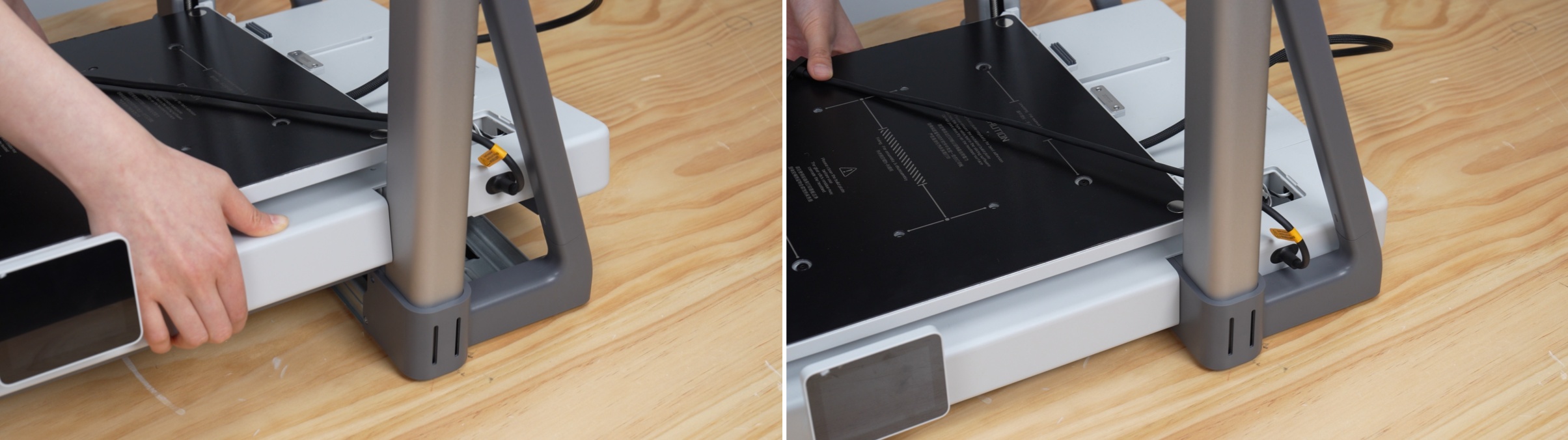
- Route the integrated cable through the triangular opening in the frame. Move the heatbed forward, then lift the rear end of the Y-axis cover to remove it.
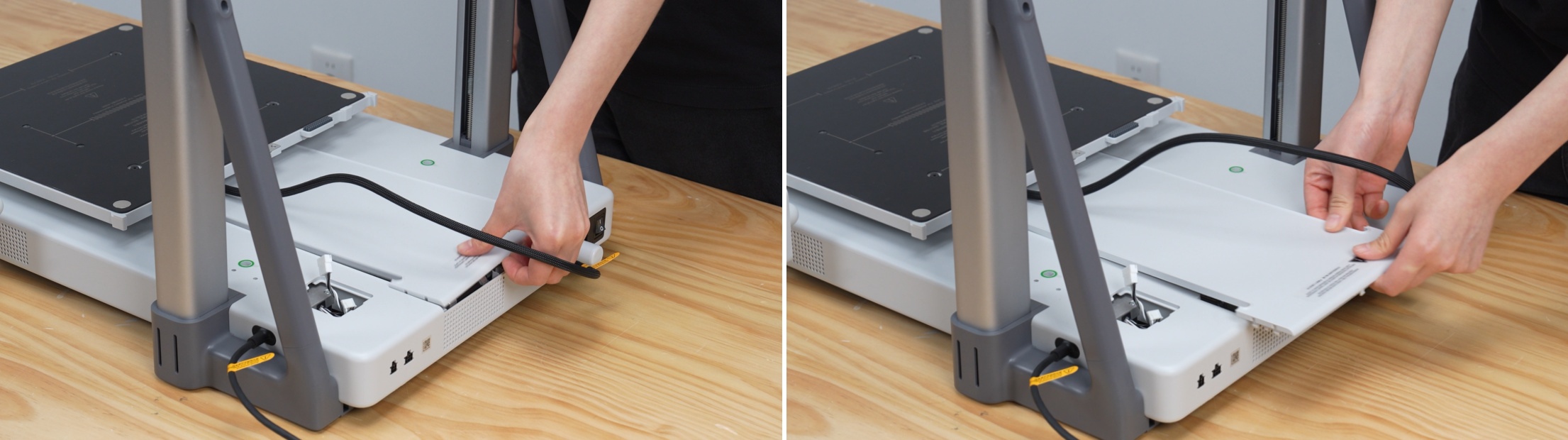
- Secure the base housing with its ten screws using an H2.0 hex key, and tighten them fully. Loose screws can interfere with Y-axis movement.
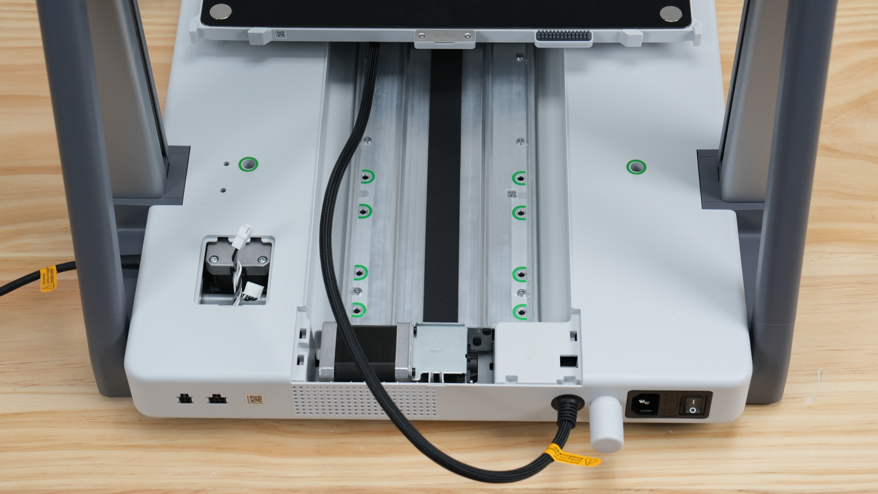
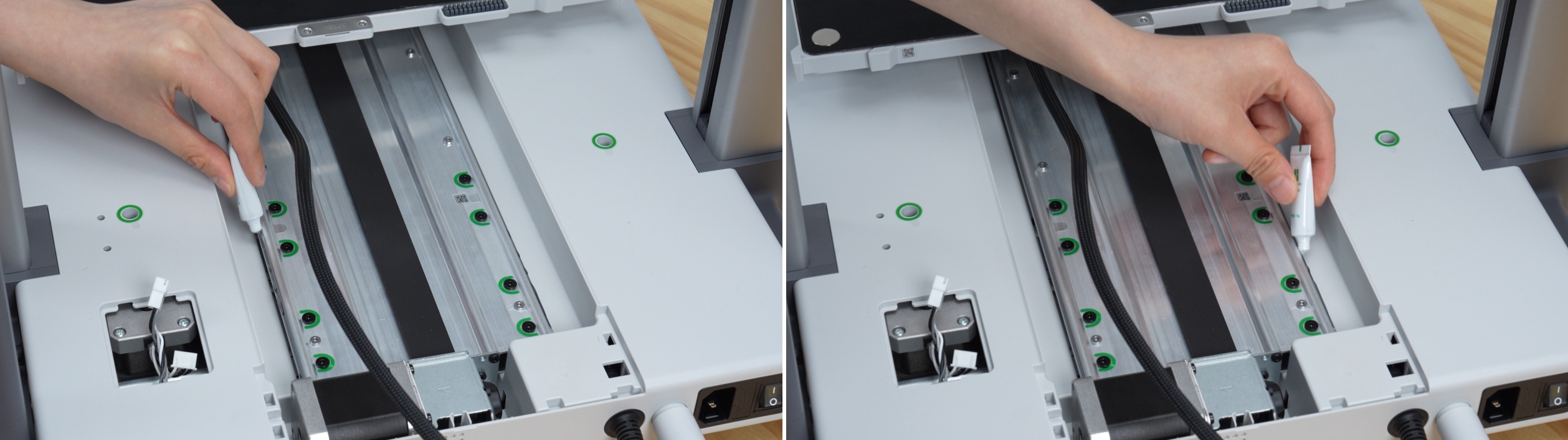
- Lubricate the Y-axis rail with the supplied oil, then move the heatbed gently to spread it. Do not use grease on this rail.
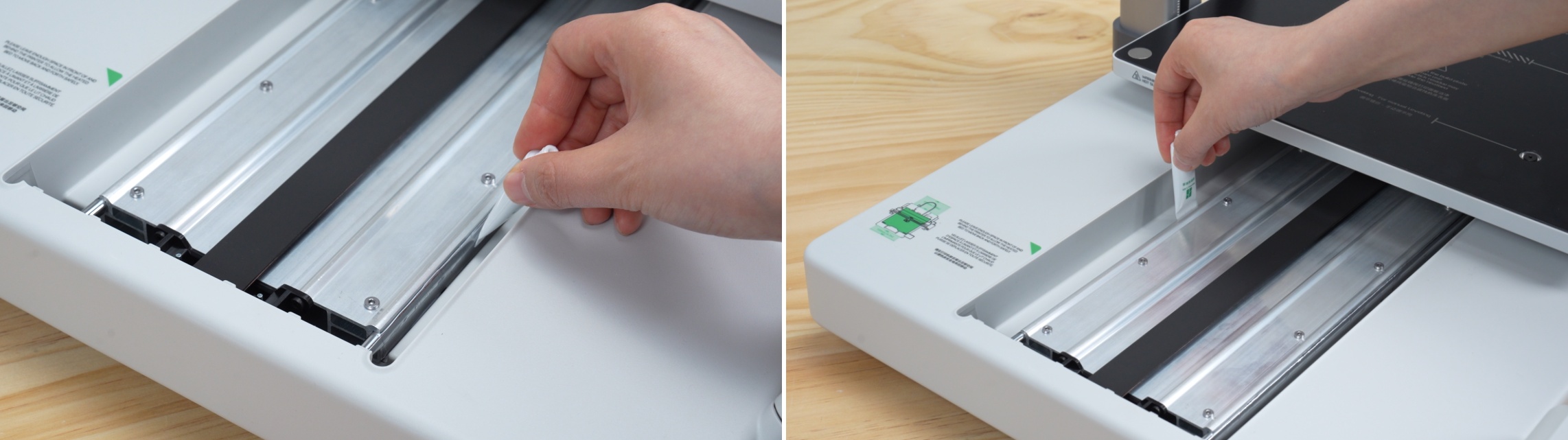
- Refit the Y-axis cover: engage the front clip first, then press the rear end down until it locks.
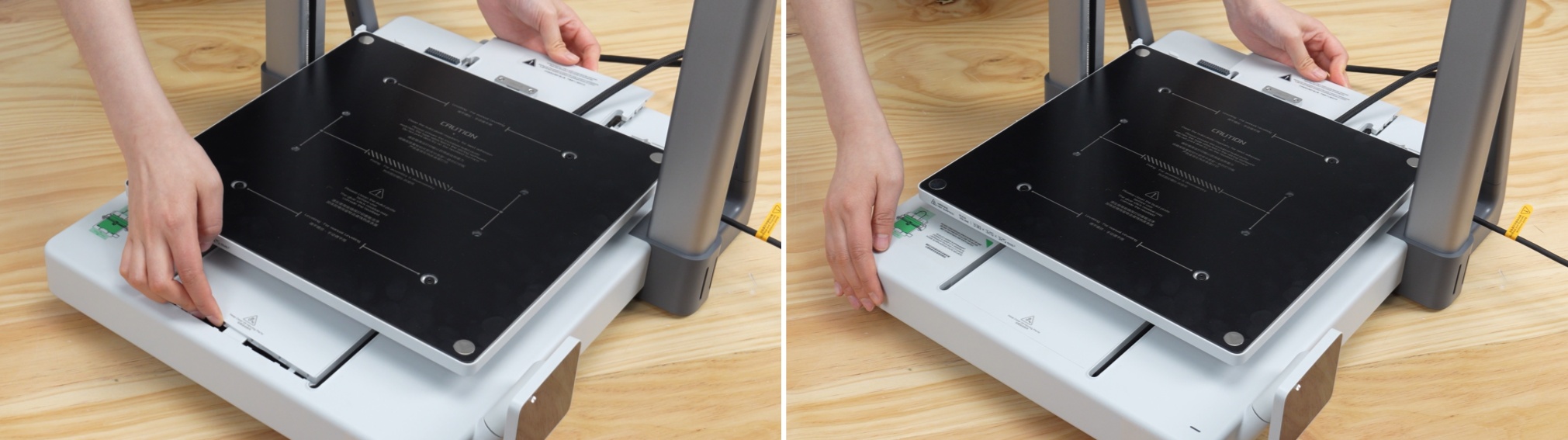
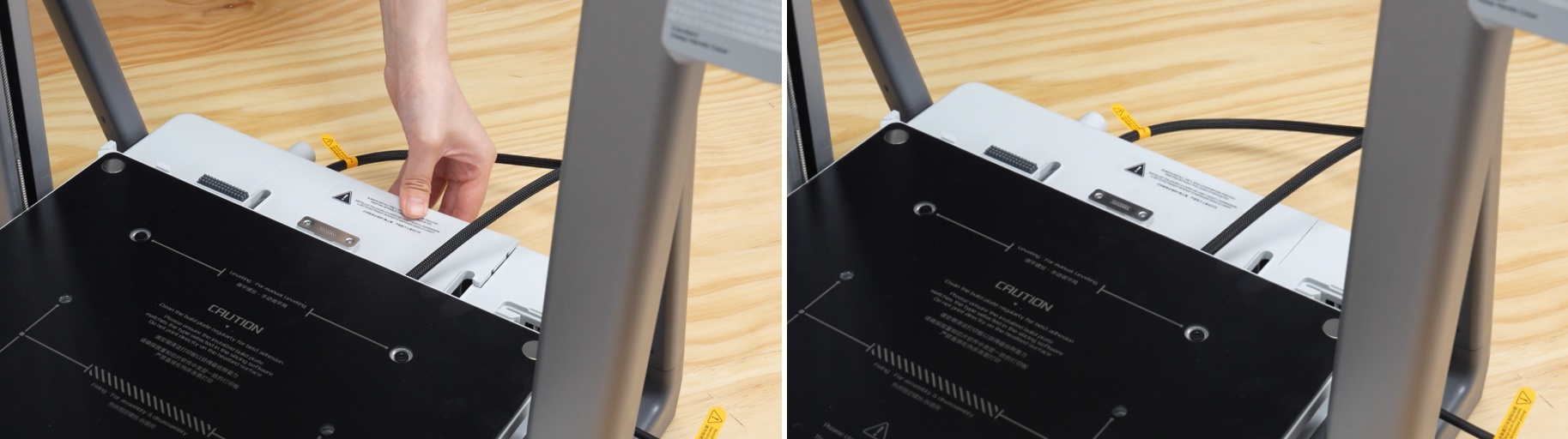
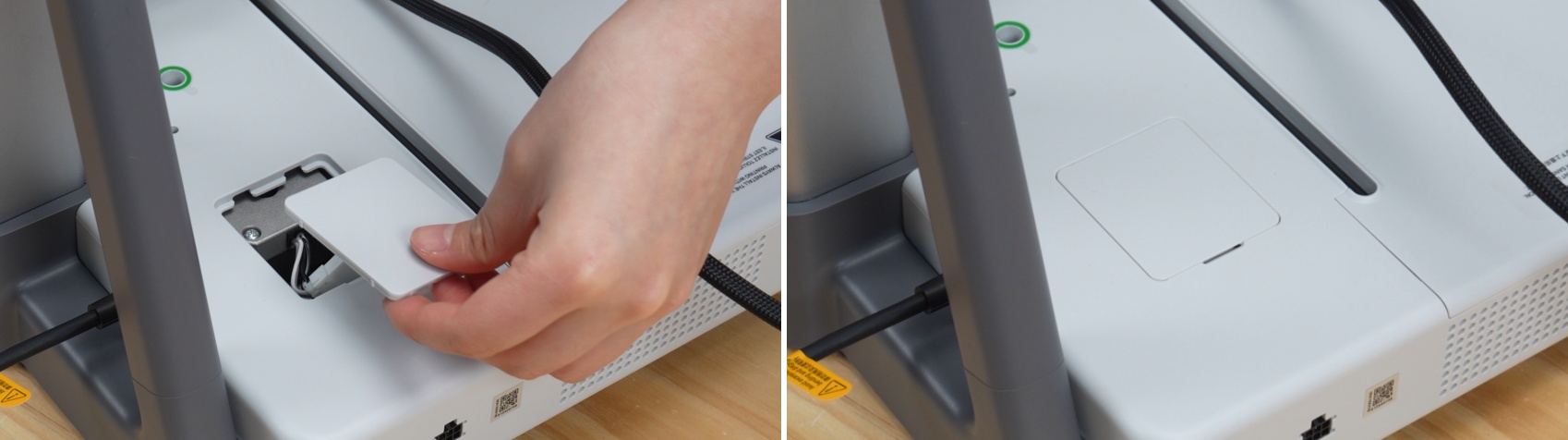
- Connect the Z motor cable and route it back into place, then fit the motor cover in the orientation shown.
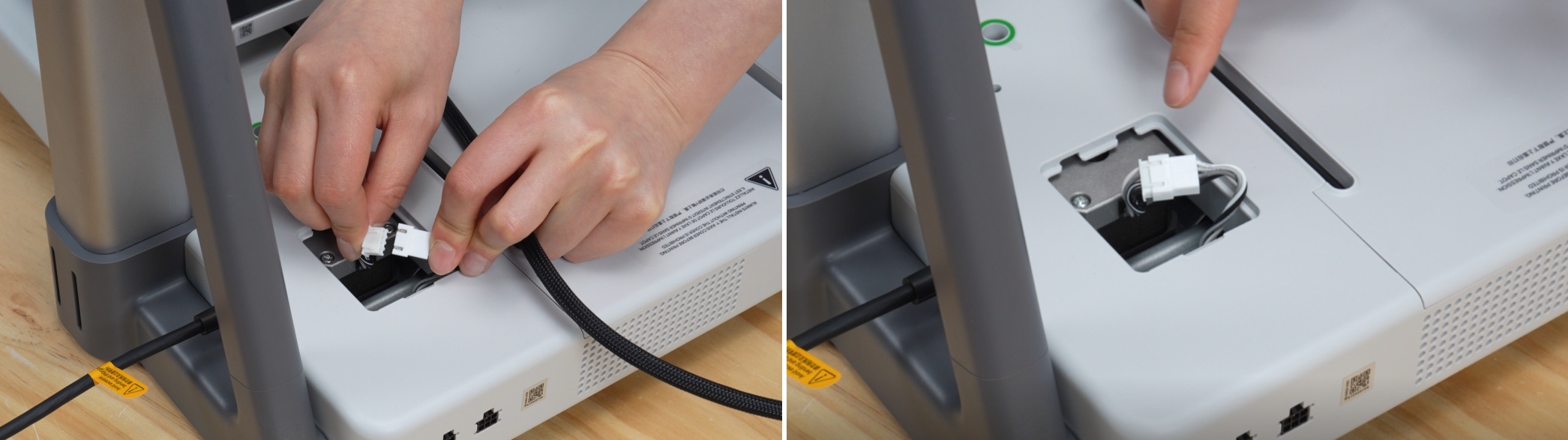
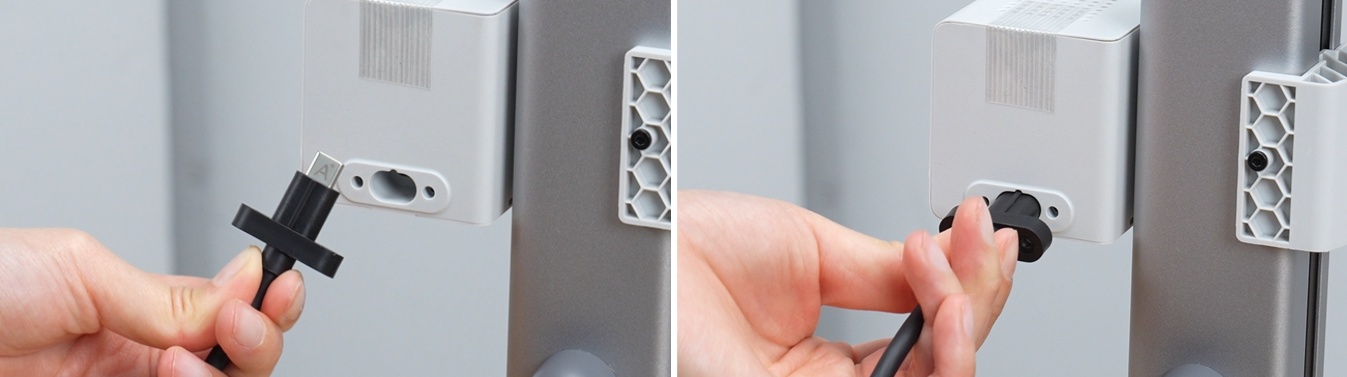
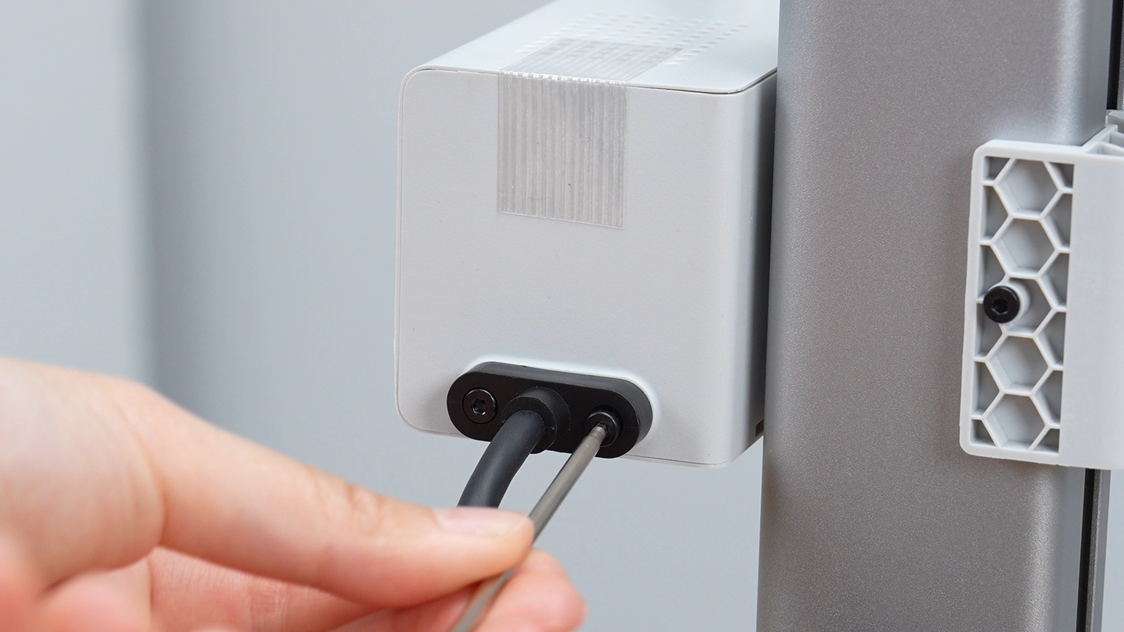
- Straighten the integrated cable. With the A marking facing upward, insert it into the rear of the X motor box and secure it with its two screws.
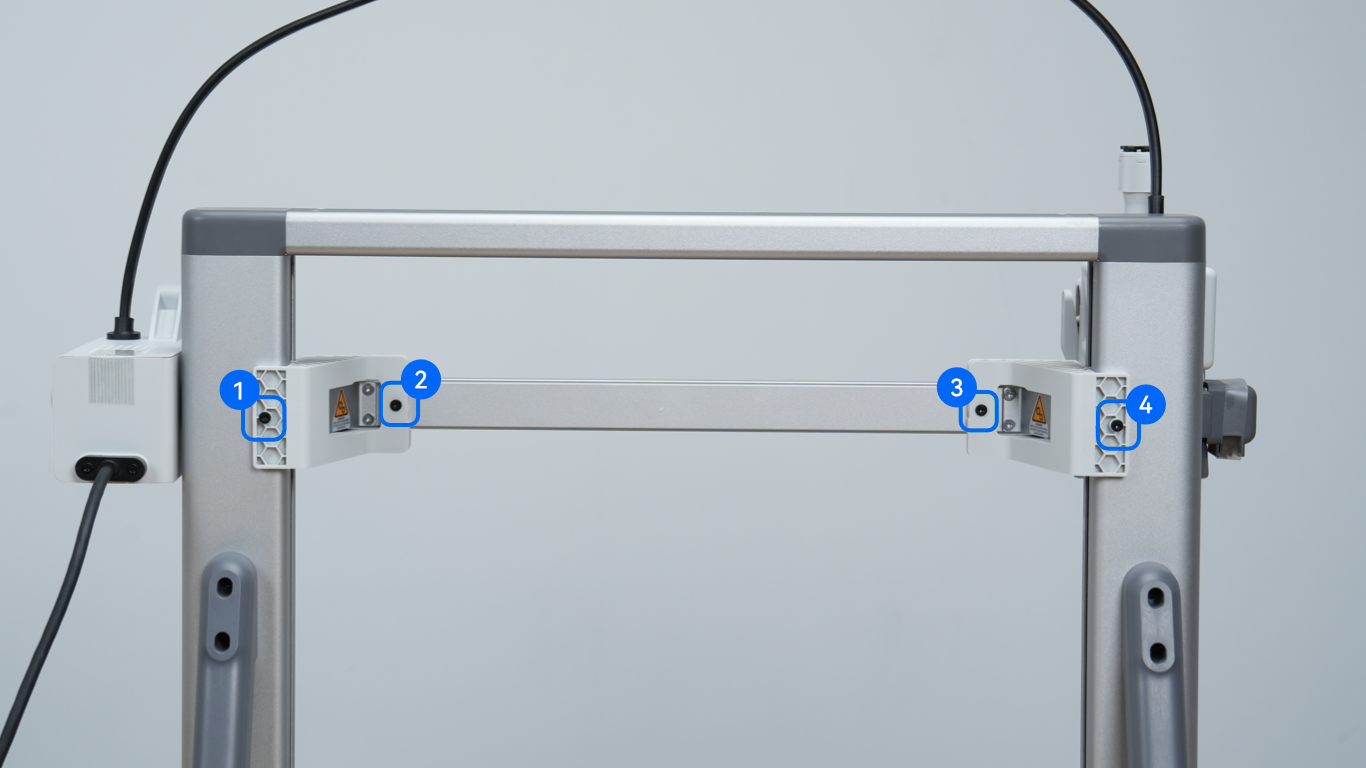
- Undo the four screws holding the two Z-axis shipping limiters and remove both limiters. Move the toolhead to the center before installing the purge wiper.
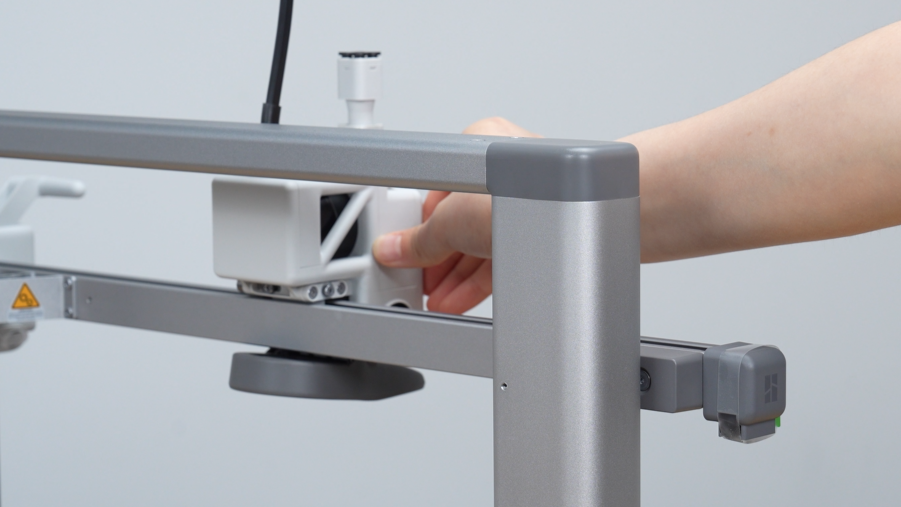
- Secure the purge wiper with its screw. Connect its cable, route the cable into its channel, then close the rear cover.
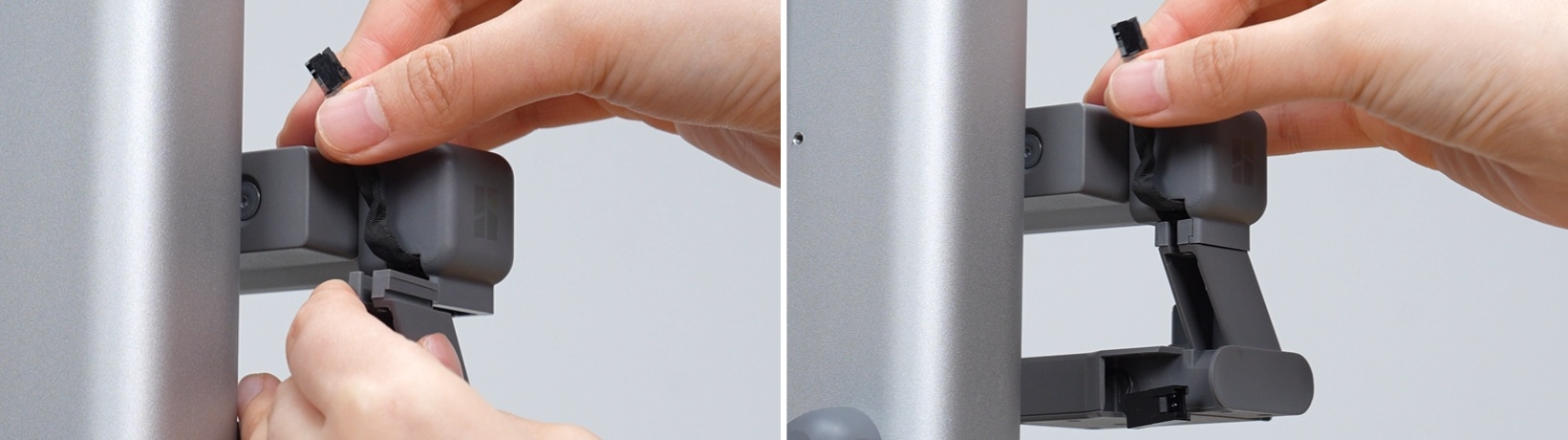
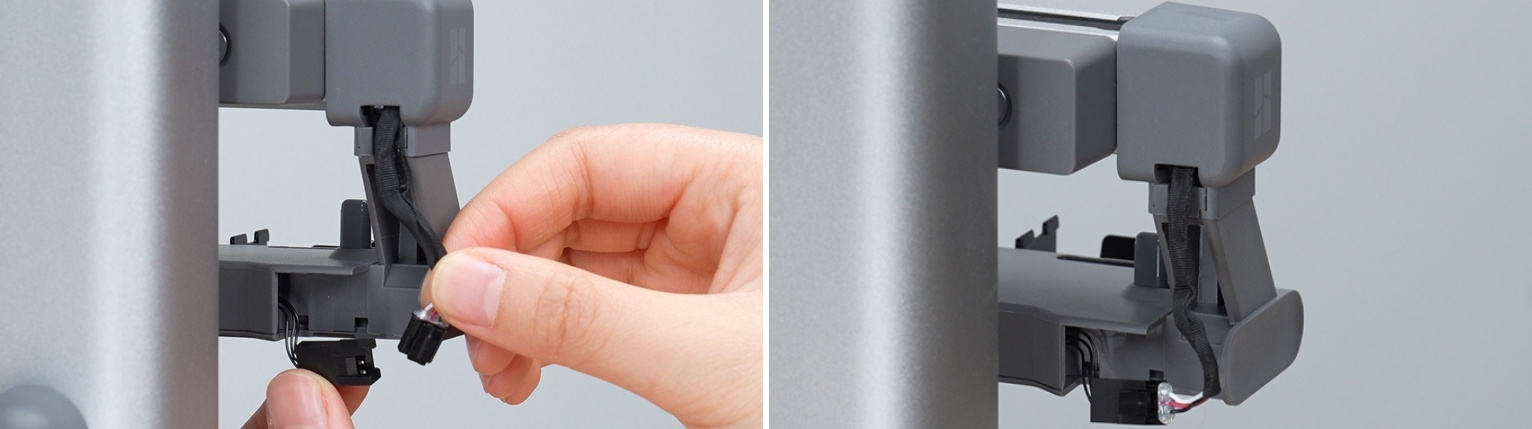
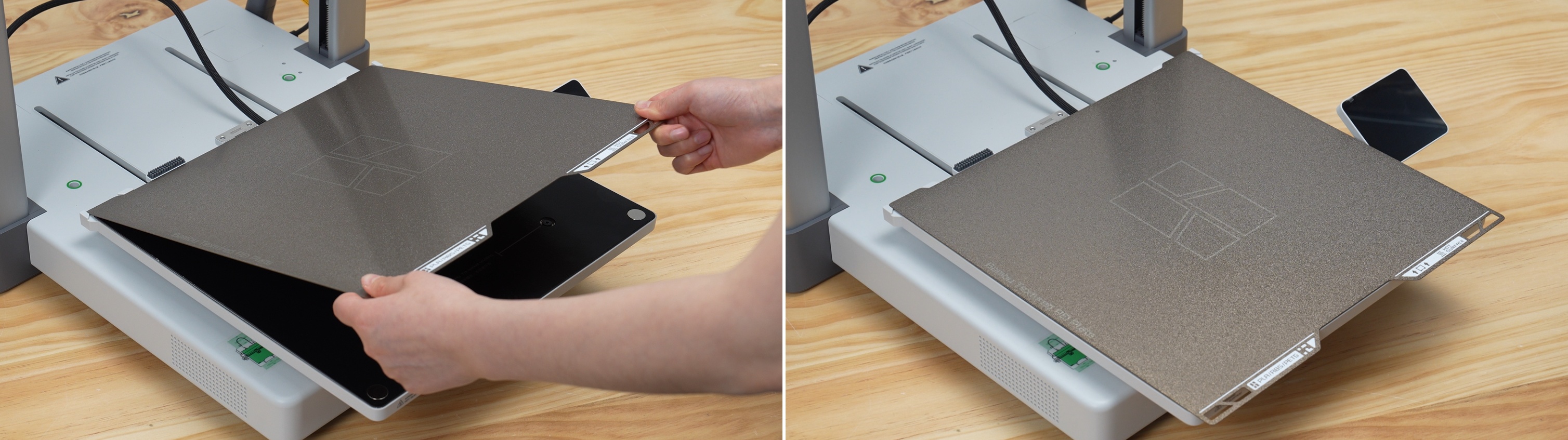
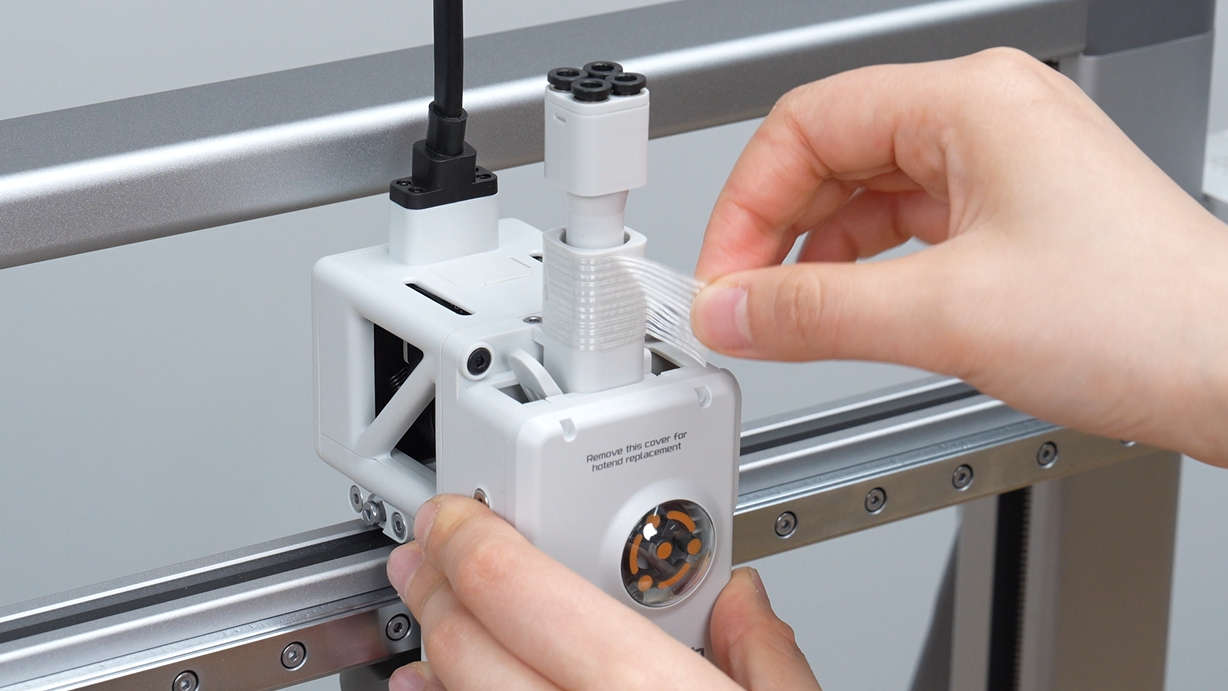
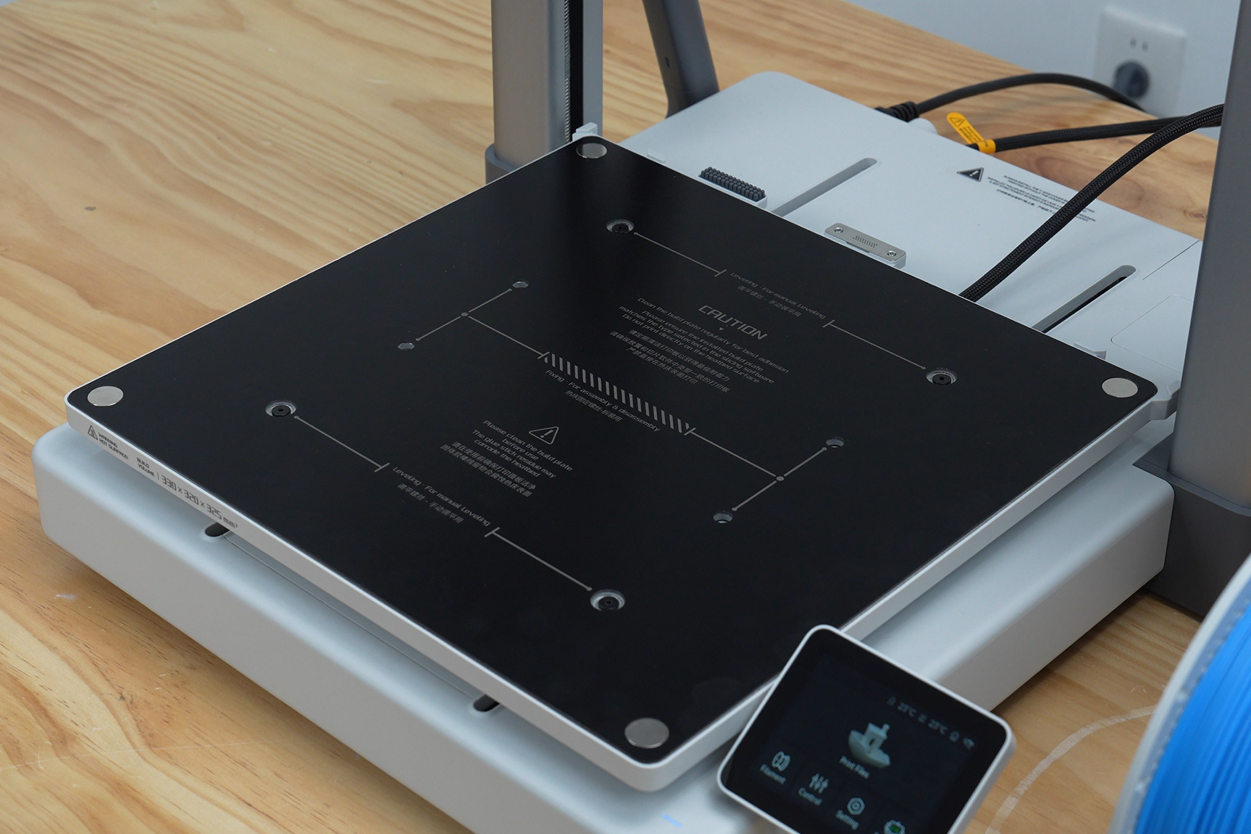
- Unfold the screen and fit the build plate. Remove the protective films and tape from the toolhead, X motor box and memory-card area. Open the privacy cover if you plan to use the camera.
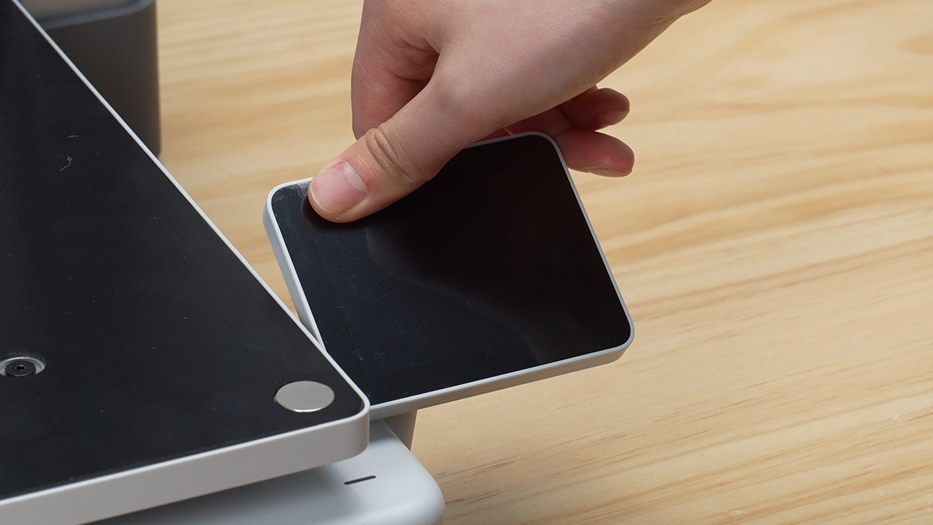
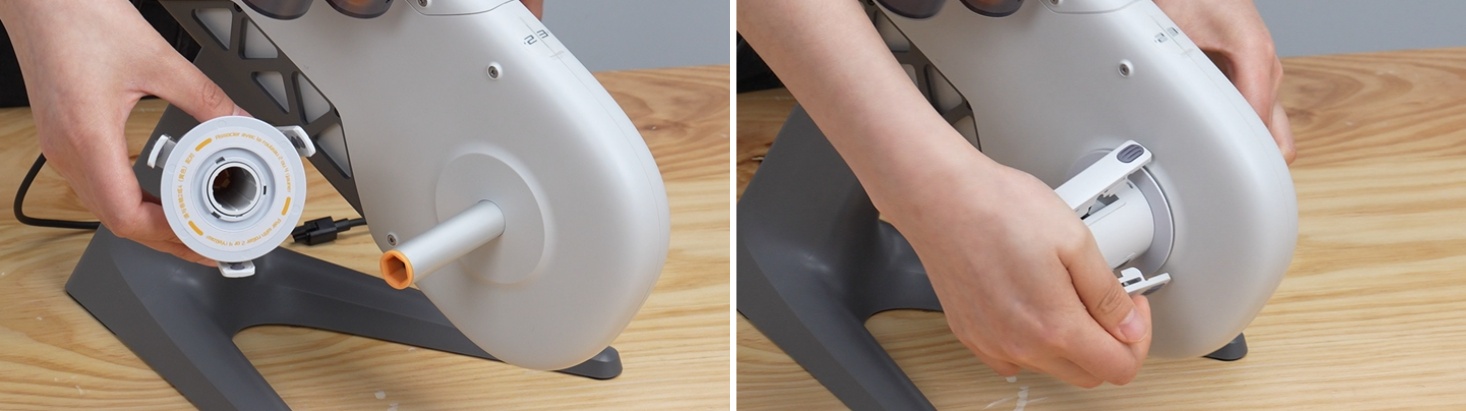
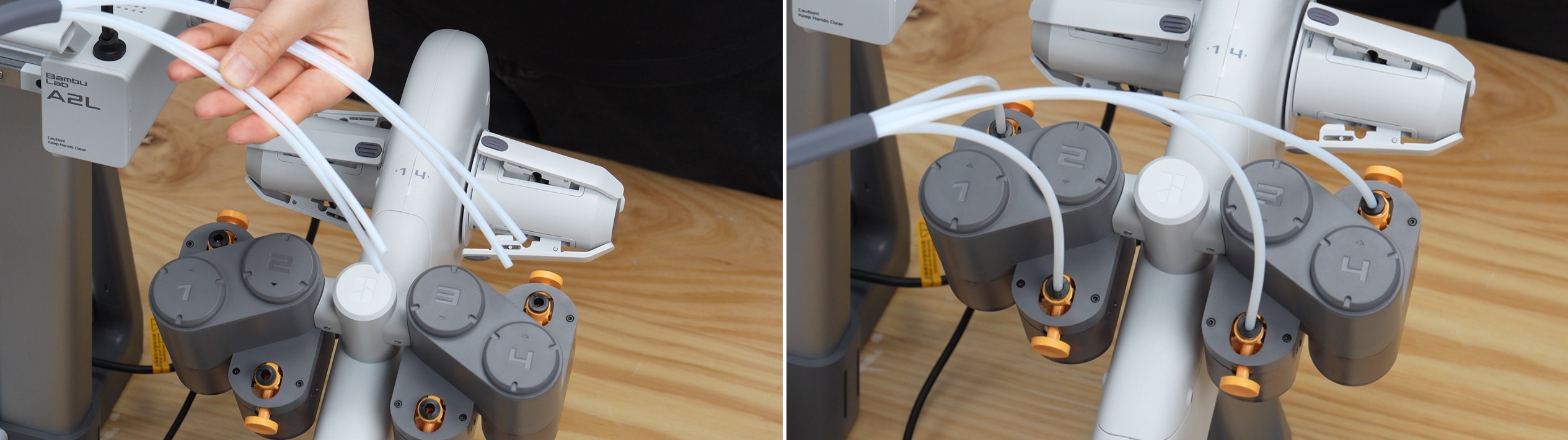
- Assemble AMS lite with four screws and match the spool holders to their colored shafts. Connect the two shorter tubes to ports 1 and 2, and the longer tubes to ports 3 and 4.
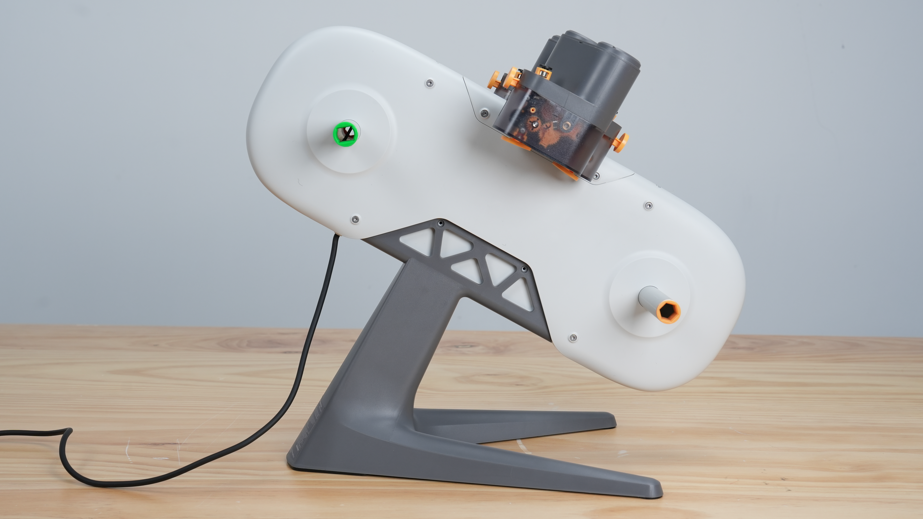
- Place AMS lite to the right of the printer, about 50 mm away, with its tubes facing the front of the printer. Connect the four-pin cable.
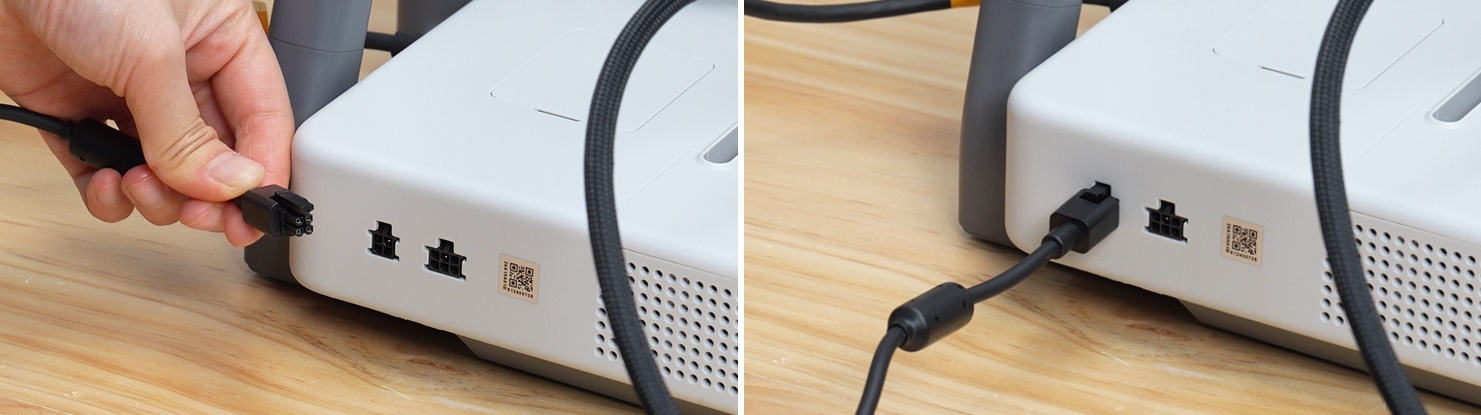
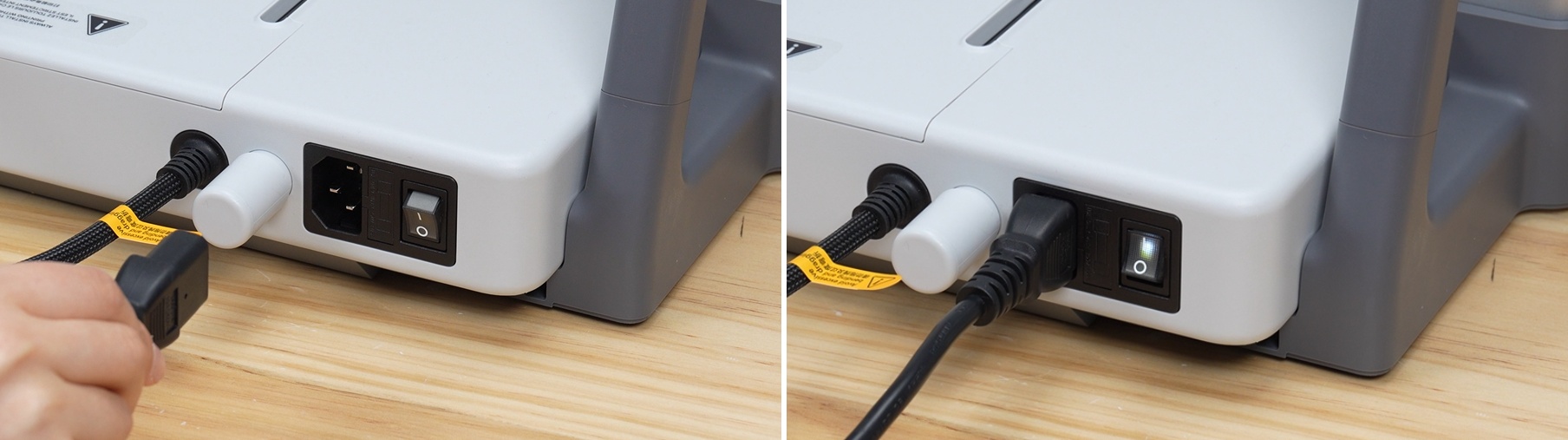
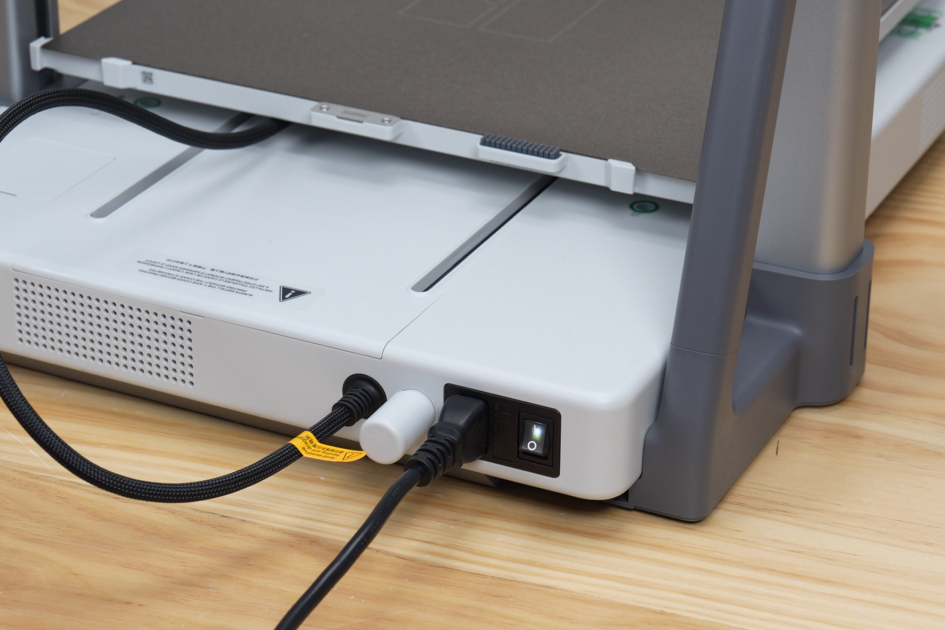
- Check the assembly, then connect power. Follow the on-screen setup and calibration steps with the build plate installed on the heatbed.
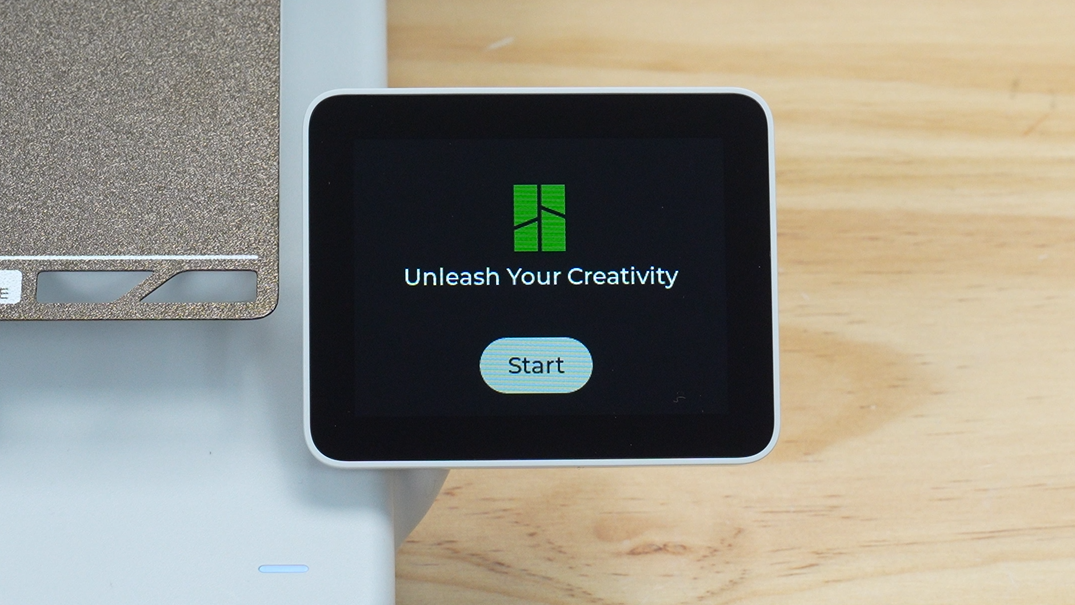
First startup and calibration
- Before connecting power, finish removing the packaging ties and foam in the A2L sequence above, supporting the base housing and heatbed while removing their foam. Check the base housing, build plate and connections, then start the on-screen setup and calibration.
- Choose the language and settings on the touchscreen. For remote printing, connect the printer to the network and pair it with the app.
- Run the checks and calibrations requested by the setup screen and wait for them to finish. Keep tools and models off the build plate, and do not touch moving parts.
- If an error appears, photograph the message and error code, then check the assembly and printer manual before running calibration again. Once setup finishes successfully, you can load filament.
Fit and load filament
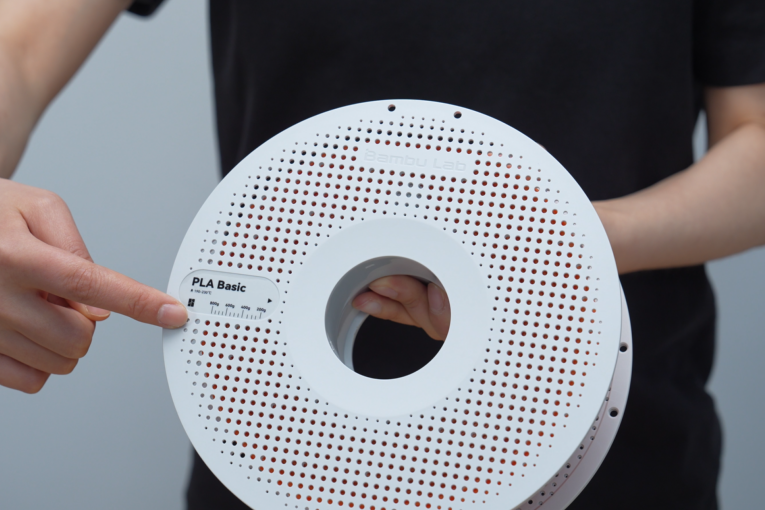
- Start with an easy material such as PLA and select its slicer profile, which contains preset settings for that material. Check that the spool and filament suit your printer and feeding system. Verify compatibility before using flexible or abrasive filament.
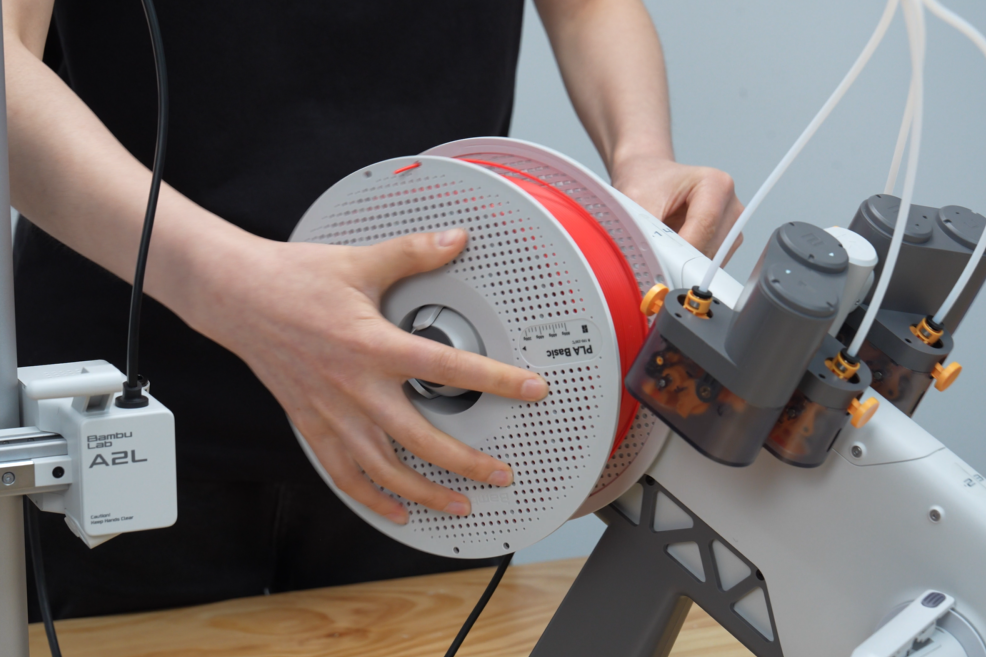
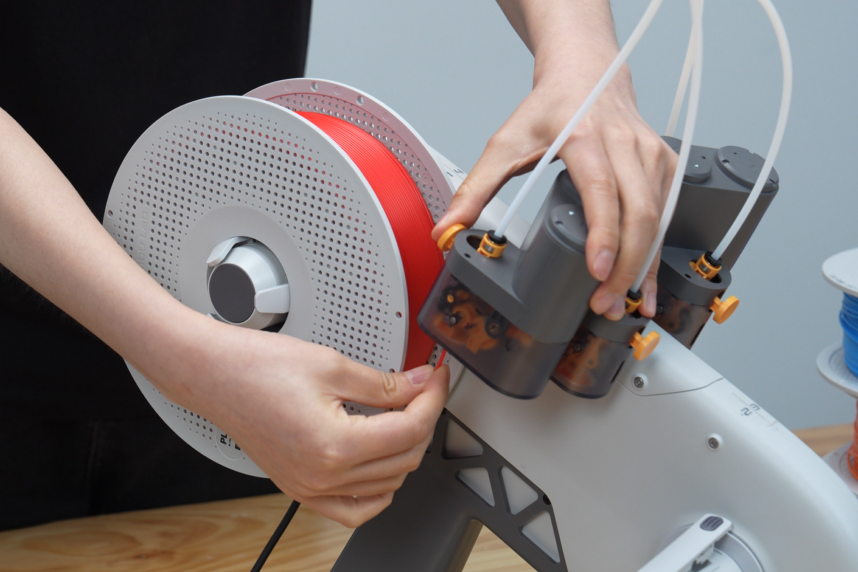
- Fit the spool so it can turn freely. Hold the filament end to prevent it from springing loose and tangling, then gently feed it into the path. Do not force it if you feel resistance.
- Insert the filament end into the AMS lite inlet for your chosen slot until it feeds automatically. Check that the spool is secure and turns in the correct direction.
- Set the filament type and color for each channel or toolhead, and match their order in the slicer to the printer. Similar colors do not necessarily mean the same material type.
- Before changing a spool, choose Unload on the touchscreen to remove the filament. Do not force filament out of a cold toolhead.

Download printer software
The desktop software for this printer is Bambu Studio. This is the slicer: use it to open your model, select the printer and filament settings, and prepare the file for printing.
Download Bambu Studio for desktop
- Open the link on your computer, choose the version for your operating system and install the software.
- Open the software and select your printer model, nozzle size and build plate type.
- Choose the filament profile, which provides preset material settings, and match the color channels to the printer for multicolor printing.
- If your printer model is missing, update the software and printer profiles from the same official source before continuing; do not choose a similarly named model.
Your first print: start with a small model
- Start with a test model stored on the printer if one is available. Before printing, check that the filament type required by the file matches the material you have loaded.
- To print your own file, download Bambu Studio from the software section above. Open the slicer and select your printer model, nozzle size and build plate type; do not use another printer's profile.
- Open the model in the slicer and place it within the build plate boundaries. Select the filament profile and keep the recommended settings for your first attempt; do not start at maximum speed.
- For multicolor printing, assign each color to the correct channel or toolhead. If the file uses a prime tower, a printed structure used to clear the nozzle between colors, check that it fits within the build plate alongside the model and supports.
- In the slicer, click Slice to prepare the file, then open Preview. Review the first layer, supports, print time and filament use, then send the file using a method your printer supports: over the network or via storage media.
- Watch the first layer: the lines should be joined and adhere to the plate without dragging or lifting at the edges. If adhesion fails, stop the print, clean the plate and check calibration and settings before trying again.


After printing
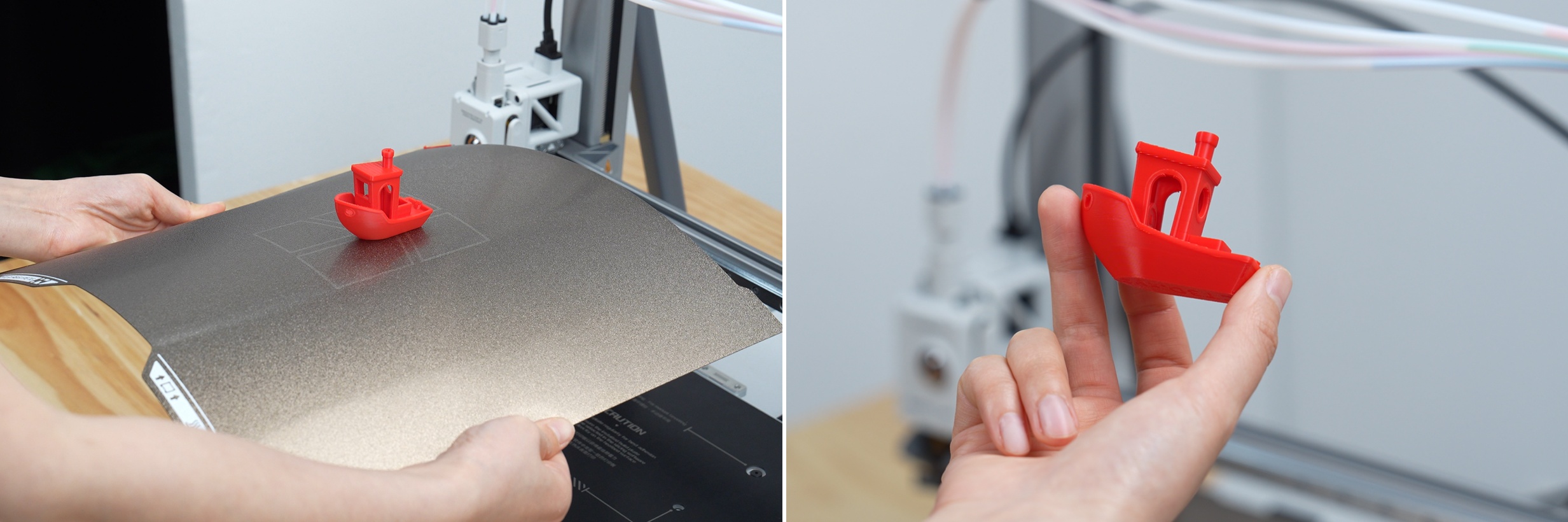
- Wait for the nozzle, heated bed and model to cool before touching them. If the build plate is flexible and suitable for this method, remove it and flex it gently to release the model, then refit it flat.
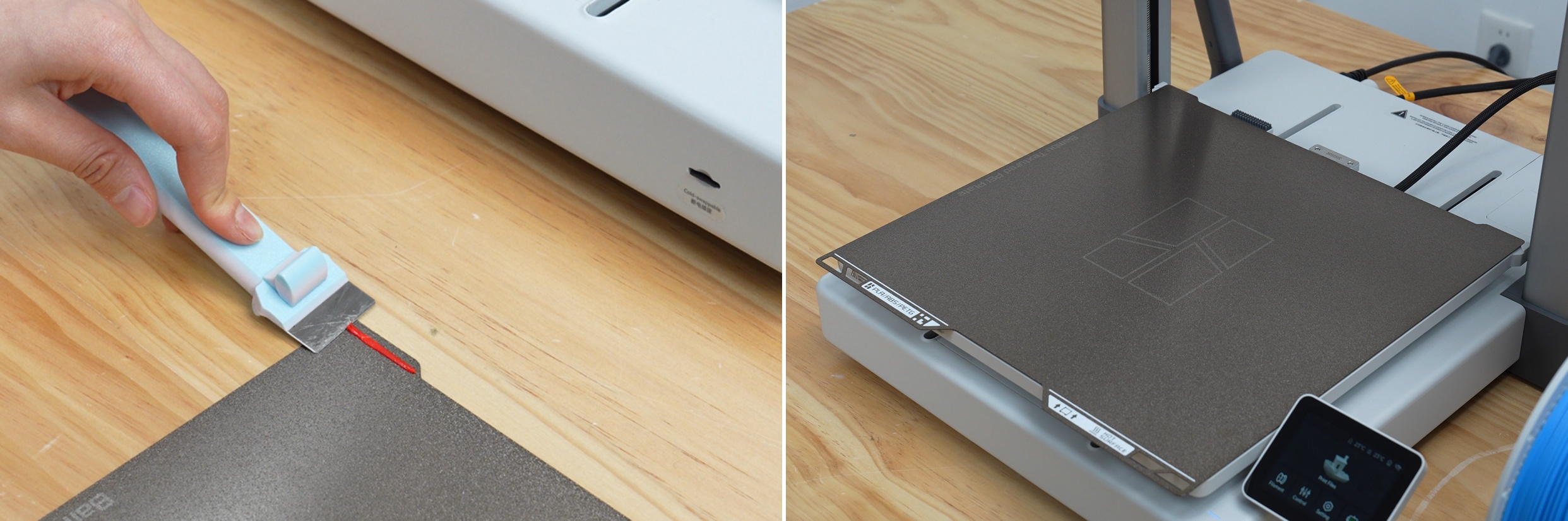
- Remove the starting line and filament debris. Check for small pieces under the build plate or on the heated bed before refitting the plate.
- Avoid touching the print surface with your fingers. Clean it using a method suitable for the plate type, and check compatibility before using any cleaner.
- Store filament in a dry place and secure its end when removing a spool to prevent tangles. Check the tubes, nozzle wiper and spools regularly.
- Follow the maintenance schedule in your printer manual. Do not apply grease or oil unless the manual specifically instructs you to.
If something goes wrong
Calibration stops or you hear a collision
Stop calibration and check the shipping screws and restraints, cable routing and build plate using the steps above. Do not rerun calibration while movement is obstructed or you hear unusual scraping. Photograph the message and error code so we can help.
Filament does not feed or come out of the nozzle
Check that you selected the correct channel, the spool turns freely, the filament is not tangled and the tube is not kinked. Confirm that loading has finished and the nozzle has reached the temperature specified by the filament profile. Do not dismantle a hot toolhead or pull filament by force; follow the printer manual if the blockage remains.
The first layer does not stick
Clean the plate appropriately for its type and refit it flat. Check the build plate type, filament and nozzle size in the slicer, then repeat bed leveling according to the printer instructions. Try a small model before starting a long print.
Colors or materials print in the wrong order
Match the channel order and material types on the touchscreen to those selected in the slicer. Check material type before color, correct the assignments and resend the print.
The printer does not appear in the software
Check the network connection, account pairing and connection mode in both the printer and software, whether local or cloud. For a local connection, the computer and printer must be on the same network. Follow the connection steps in your printer manual.
If the issue remains, send us the model name, error code and a photo of the connections or a short video showing the problem through the contact page.
Manuals and printer resources
- Printer manual — Bambu Lab A2L
- Connecting AMS systems to A2L
- Assembly video
- Download printer software
Prepared by Tajseem using the manufacturers' manuals. Videos remain in their original language. If your printer version differs or instructions have changed, follow the latest manual for your specific version.
All printer setup and operation guides View the printer at Tajseem